← Back to Portfolio
Active Directory Lab Windows Server 2022 Azure VM AD DS & DNS Helpdesk / IAM Workflow

Active Directory Beginner Lab (Azure-hosted)

Deployed a Windows Server 2022 VM in Azure, promoted it to a domain controller for adlab.local, and walked through the full identity lifecycle: creating users and groups, organizing OUs, configuring a shared folder, and practicing common helpdesk tasks like password resets and group membership changes.

1
Domain Controller
Windows Server 2022 in Azure
1
AD Domain
adlab.local forest created
12
Users & Accounts
Lab users and service identities
4
OUs & Groups
Custom OU and security group design
5
Helpdesk Tasks
Resets, unlocks, group changes & more
Azure-hosted AD DS lab Identity & access lifecycle in practice Helpdesk-style workflows and troubleshooting

Project overview

Provisioned a Windows Server 2022 VM in Azure, connected via RDP, and configured it as DC01, the first domain controller for adlab.local. After installing AD DS and DNS, the server was promoted to a domain controller and verified using Active Directory Users and Computers (ADUC).

From there, the focus shifted to the identity lifecycle: creating a test user, designing a clean OU and group structure, and wiring up a shared folder that relies on group-based permissions — mirroring the daily tasks handled by entry-level IT and IAM teams.
Key deliverables

  • Azure-hosted Windows Server 2022 VM configured as domain controller (DC01)
  • New forest and domain adlab.local with DNS integrated
  • Clean OU layout and security groups for role-based access control
  • Test user and group workflows for password resets and unlocks
  • Shared folder corp_shared with group-based NTFS and share permissions
  • Sample PowerShell for scripted user and group administration

Workflow Overview

Phase 1

Azure VM setup

Deployed a Windows Server 2022 VM in Azure, connected via RDP, and prepared the host as DC01 with baseline networking and server configuration.

Phase 2

AD DS & DNS roles

Installed Active Directory Domain Services and DNS using Server Manager to enable identity, authentication, and name resolution.

Phase 3

Domain promotion

Promoted DC01 to a domain controller and created the adlab.local forest, verifying domain health with ADUC.

Phase 4

Users, groups & OUs

Created a test user, domain admin, and security group, then organized objects into a clean OU structure.

Phase 5

Access & helpdesk workflow

Linked a shared folder to groups, tested access, and practiced typical helpdesk tasks like password resets and membership updates.

Lab Breakdown

Phase 1 — Azure VM deployment and baseline server configuration

The lab begins in Azure, provisioning a Windows Server 2022 VM that will become the first domain controller. Once deployed, the connection was established via RDP, the host was renamed to DC01, and networking was validated so the server was ready for directory services.

1.1 — Creating the Windows Server 2022 VM in Azure

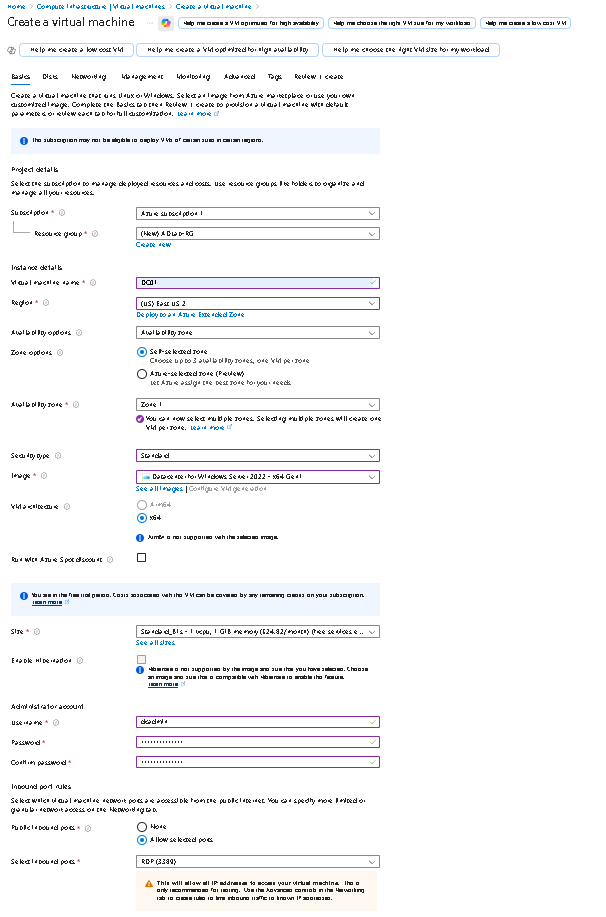
Using the Azure portal, a new Windows Server 2022 VM was created in a lab subscription. Region, size, and OS image were selected, RDP access was enabled, and an initial local admin account was set to support the first login.

  • Chose an Azure region and VM size suitable for a small AD lab
  • Configured RDP access and admin credentials for the initial connection
  • Named the host DC01 to reflect its future role as a domain controller
Azure VM Creation Parameters DC01

Azure VM creation settings for the Windows Server 2022 host, including region, size, OS image, and base configuration for DC01.

1.2 — First RDP login and server readiness

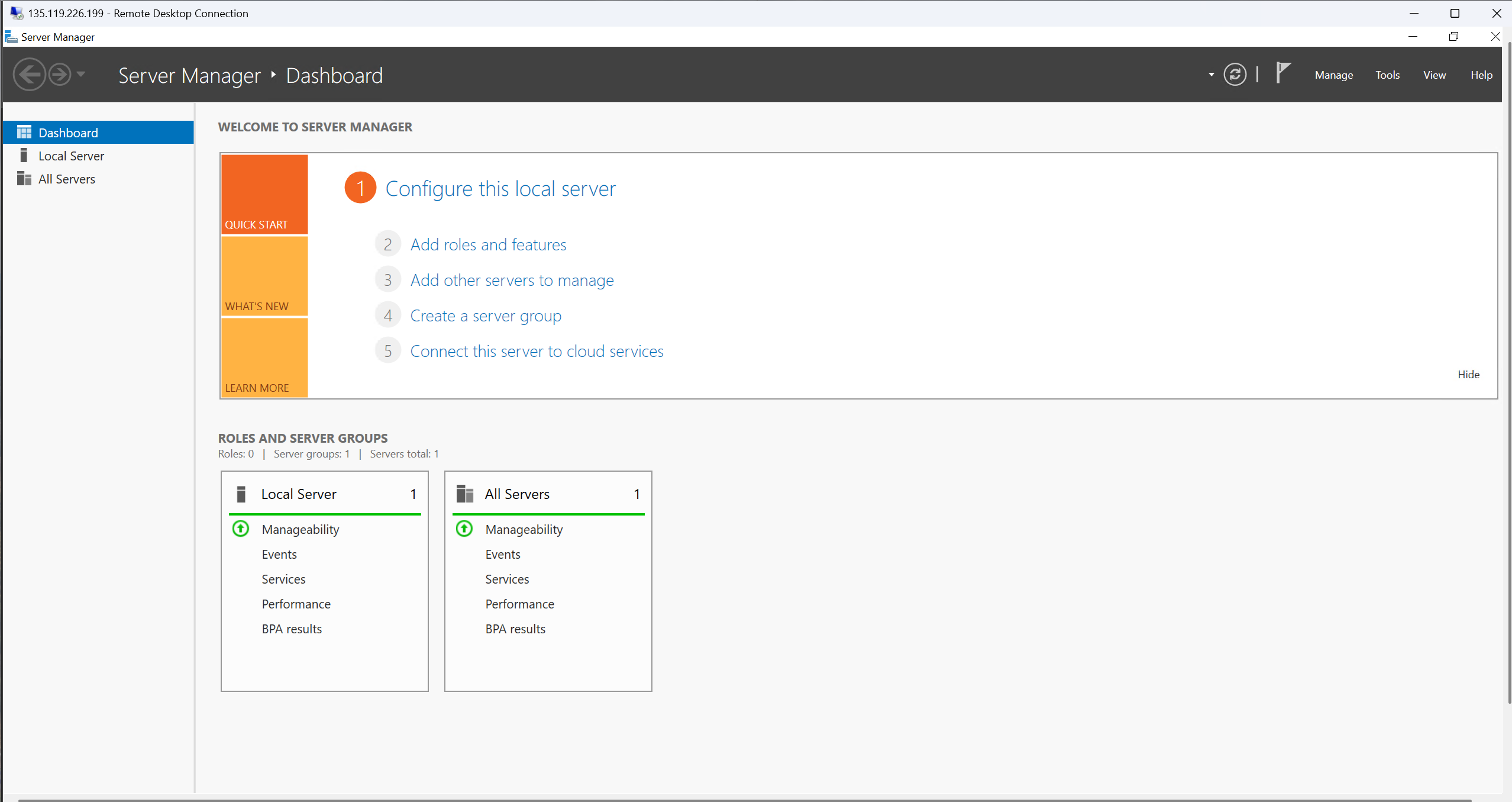
After deployment, the VM was connected to using RDP. From Server Manager and SCONFIG, networking was confirmed, the computer name was adjusted, and the server was restarted to apply changes. This created a clean base image for AD DS.

  • Verified network connectivity and basic Windows updates
  • Renamed the server to DC01 and joined the appropriate workgroup
  • Confirmed the system was ready for role installation via Server Manager
Windows Server Manager Dashboard Fresh Install

Server Manager dashboard after first RDP login, showing the server ready for AD DS and DNS.

Phase 2 — Installing Active Directory Domain Services and DNS

With the base server configuration complete, the next step was to install Active Directory Domain Services (AD DS) and DNS. These roles provide the core identity and name resolution services required for a Windows domain.

2.1 — Using the Add Roles and Features wizard

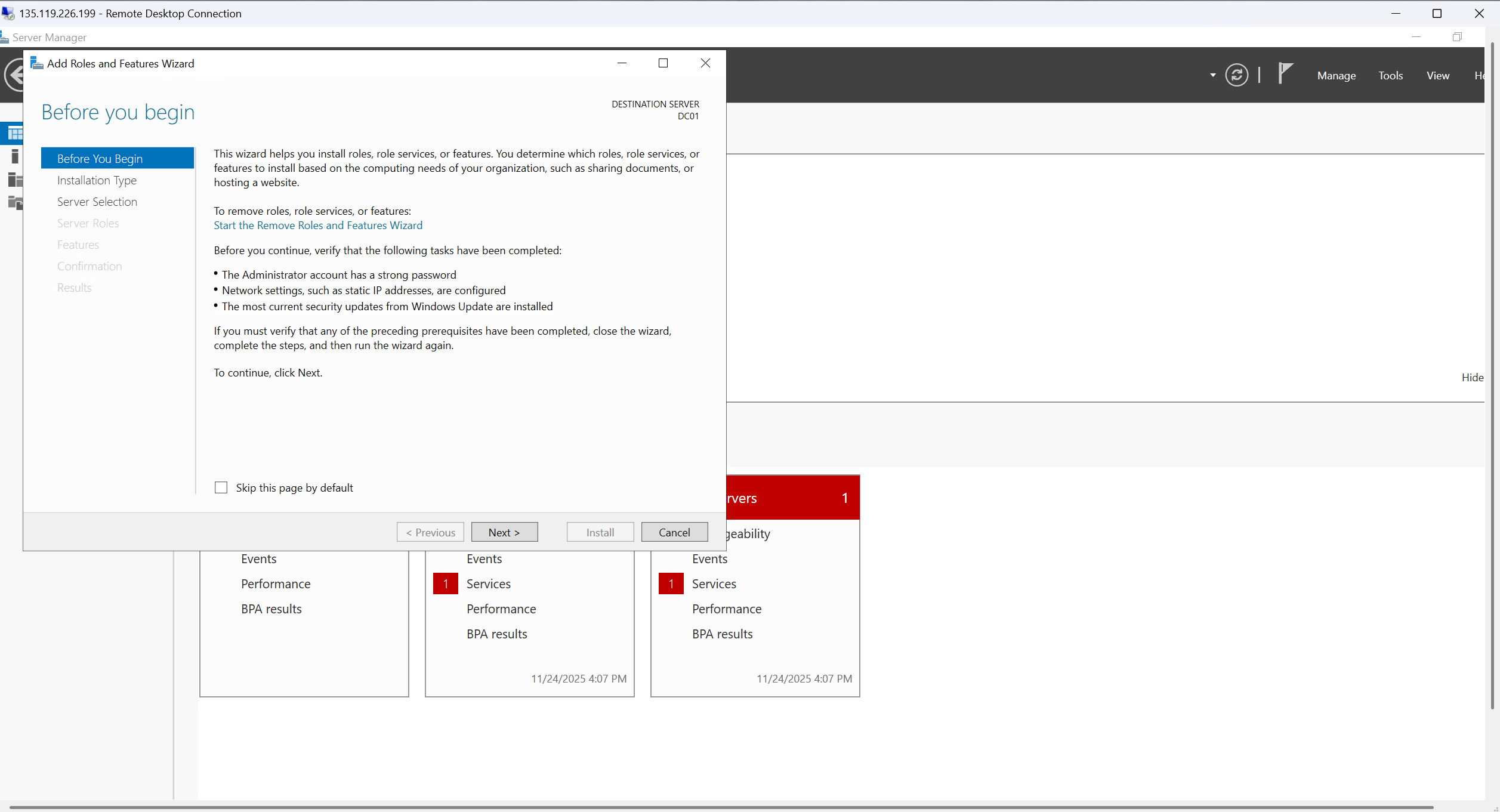
From Server Manager, the Add Roles and Features wizard was launched and AD DS and DNS Server were selected. The wizard walked through prerequisites, confirming that DC01 met the requirements for a domain controller.

  • Chose role-based installation for the DC01 server
  • Selected AD DS and DNS roles in one pass to keep the deployment consistent
  • Reviewed and confirmed prerequisites before the installation began
Add Roles Wizard Before You Begin

Add Roles and Features wizard in Server Manager, preparing AD DS and DNS installation.

2.2 — Completing installation and preparing for promotion

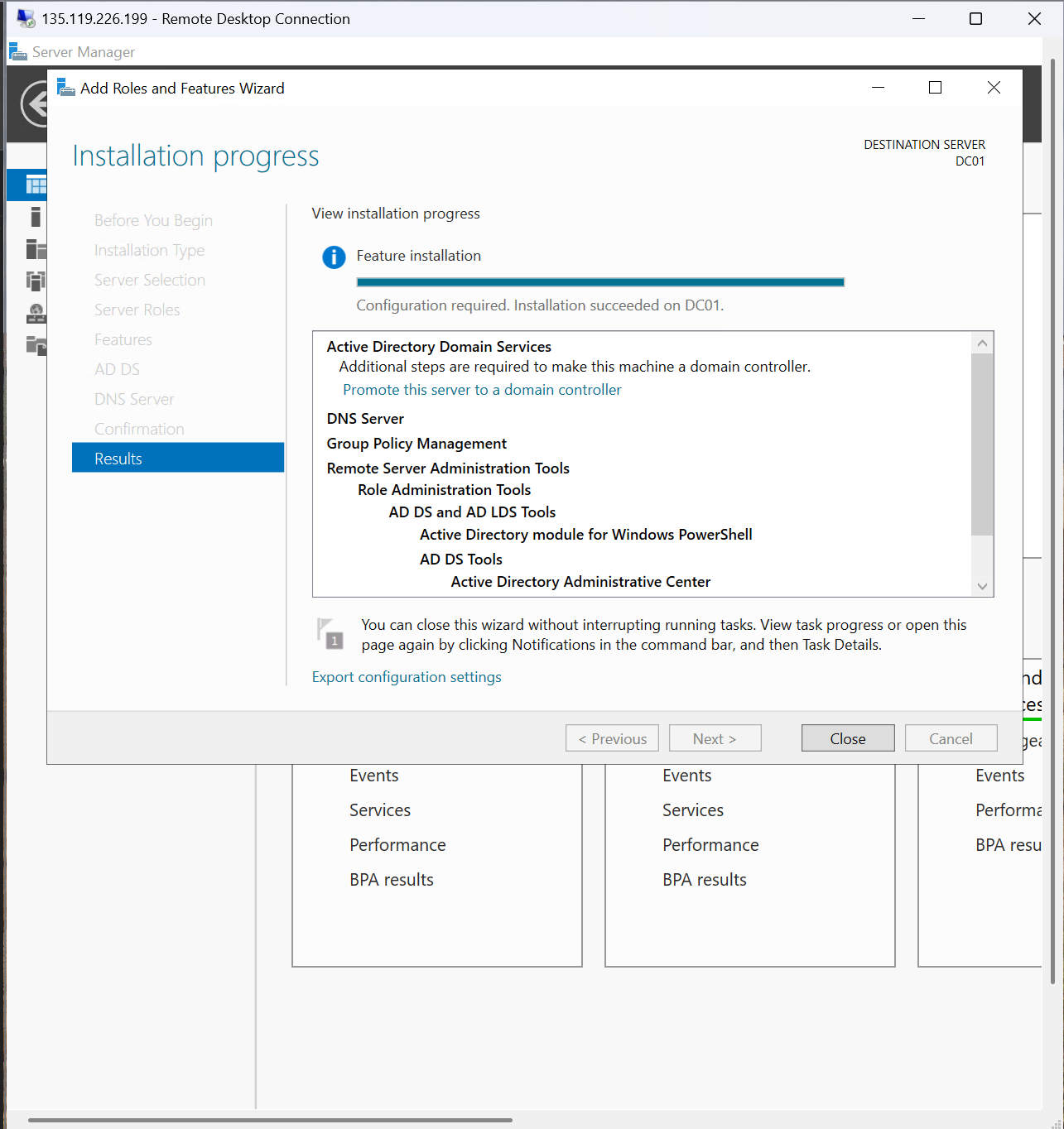
Once the roles were installed, Server Manager surfaced a notification to promote this server to a domain controller. This is the bridge between simply having the bits installed and actually turning DC01 into the identity authority for the lab.

  • Confirmed AD DS and DNS installation completed successfully
  • Captured the "Promote this server to a domain controller" handoff step
  • Prepared to create a new forest for the adlab.local environment
Add Roles Results Promote to DC Prompt

Installation results showing AD DS role installed and prompting to promote DC01 to a domain controller.

Phase 3 — Promoting DC01 and creating the adlab.local forest

After the roles were in place, the Active Directory Domain Services Configuration Wizard was used to create a new forest and promote DC01 to a domain controller for adlab.local. This step officially turned the Azure VM into the core identity provider for the lab.

3.1 — Forest and domain configuration

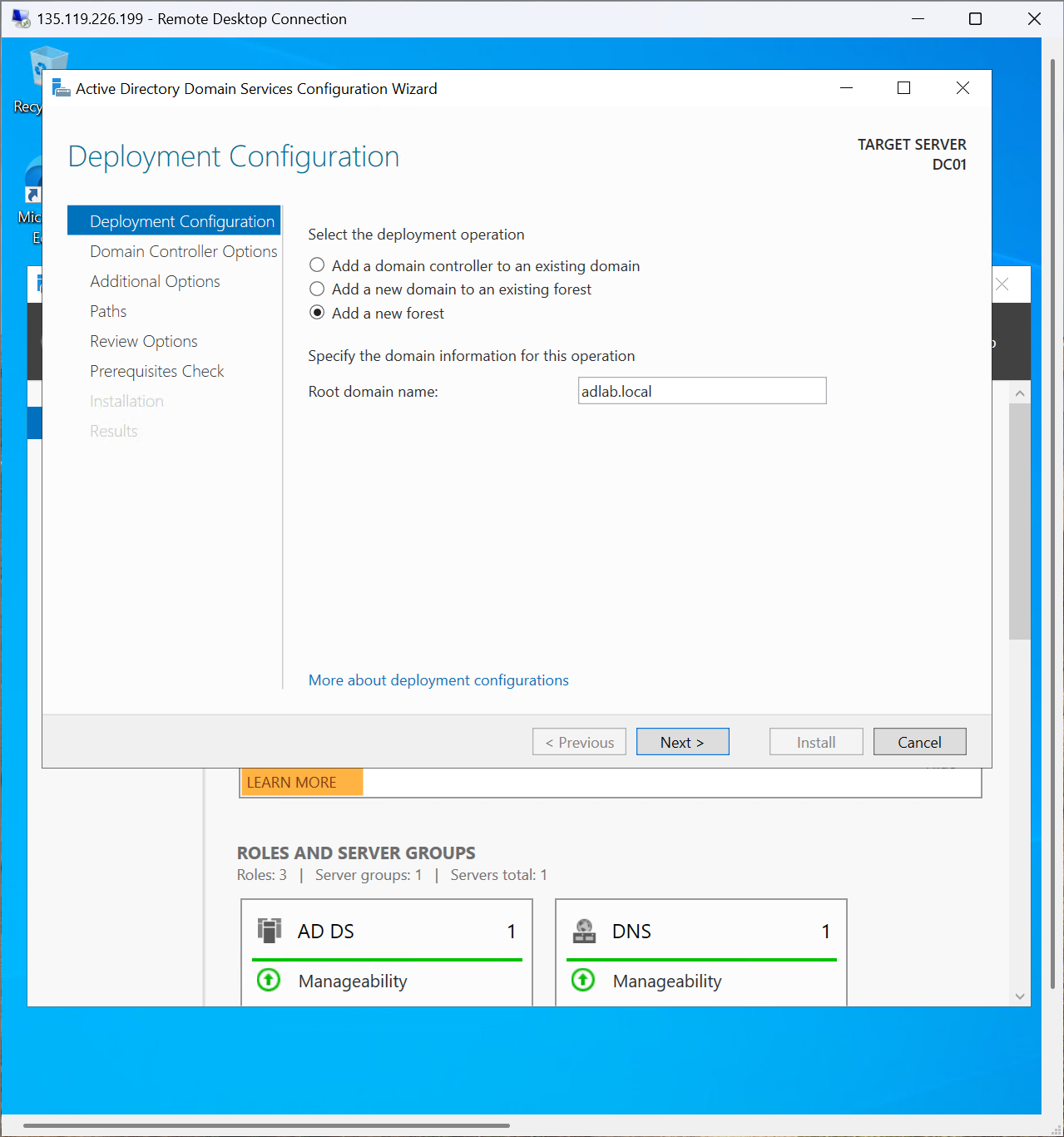
The wizard was configured to create a new forest with root domain adlab.local. Domain controller capabilities, DSRM password, and DNS integration settings were specified to ensure proper functionality post-promotion.

  • Created a new forest with adlab.local as the root domain
  • Enabled DNS integration and set domain/forest functional levels
  • Configured the DSRM password for recovery scenarios
AD DS Deployment Configuration New Forest

AD DS configuration wizard creating a new forest and defining the adlab.local domain.

3.2 — Prerequisite checks and domain controller promotion

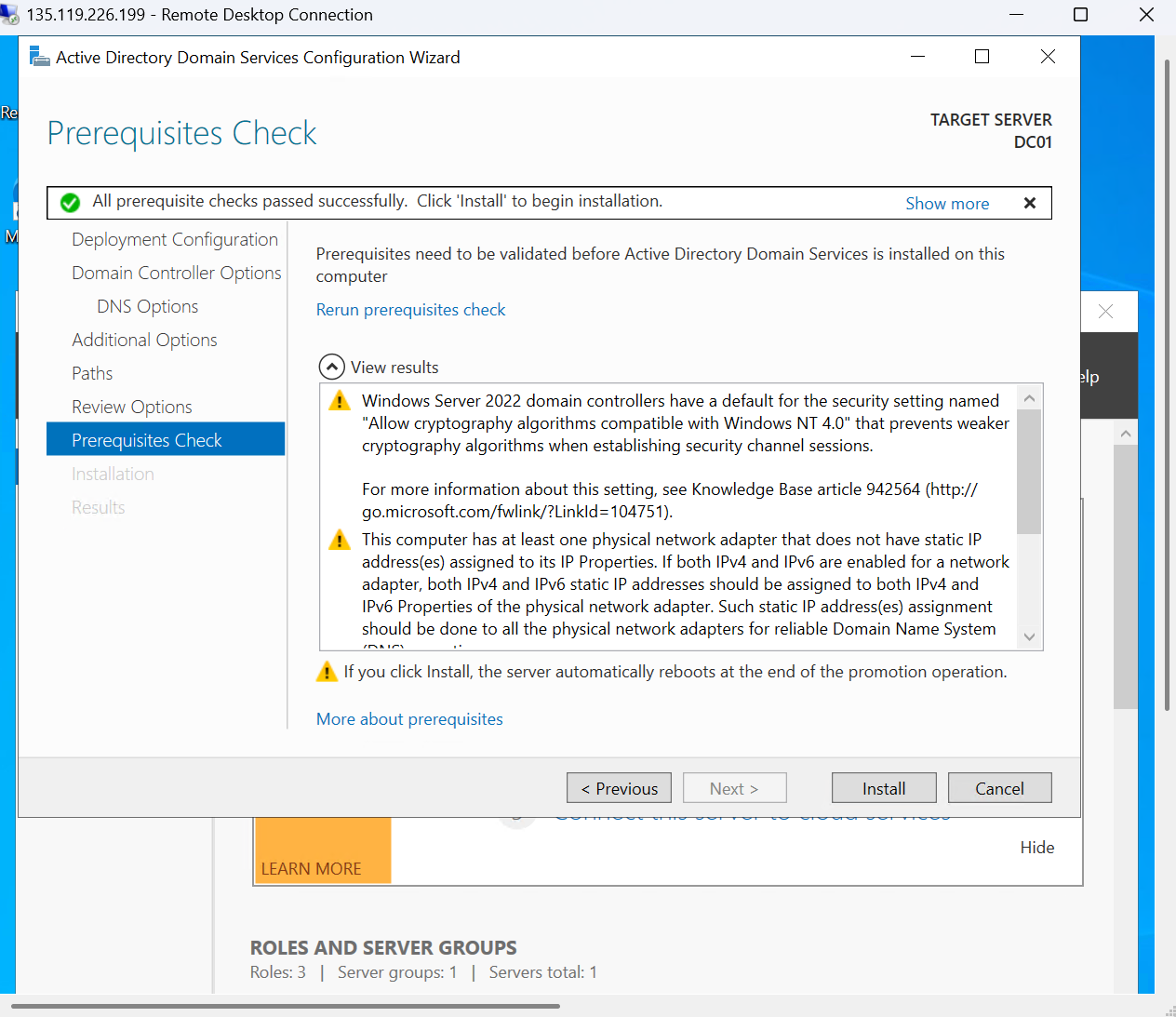
Before promotion, Windows ran a set of prerequisite checks against DNS, networking, and security settings. Once everything passed, the wizard promoted DC01 and the server rebooted as a full domain controller.

  • Reviewed and resolved any warnings surfaced by the prerequisites check
  • Completed the promotion and allowed DC01 to restart into its new role
  • Verified domain health and services post-reboot
AD DS Prerequisites Check Passed

AD DS prerequisites check passing, confirming readiness for DC promotion.

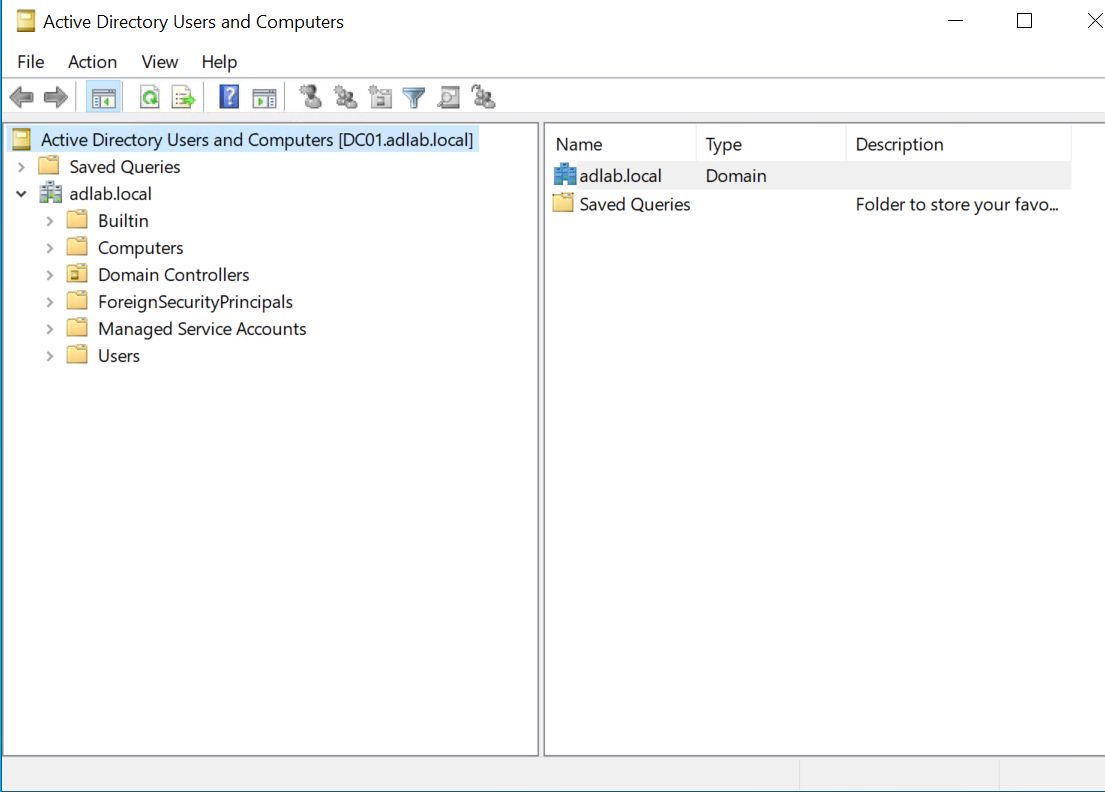
DC01 ADUC Initial View

ADUC view of the new adlab.local domain after DC01 promotion.

Phase 4 — User lifecycle and group management in ADUC

With the domain online, the focus shifted to everyday identity operations: creating users, configuring passwords, and establishing security groups that reflect real-world roles. These are the tasks most commonly handled by helpdesk and IAM analysts.

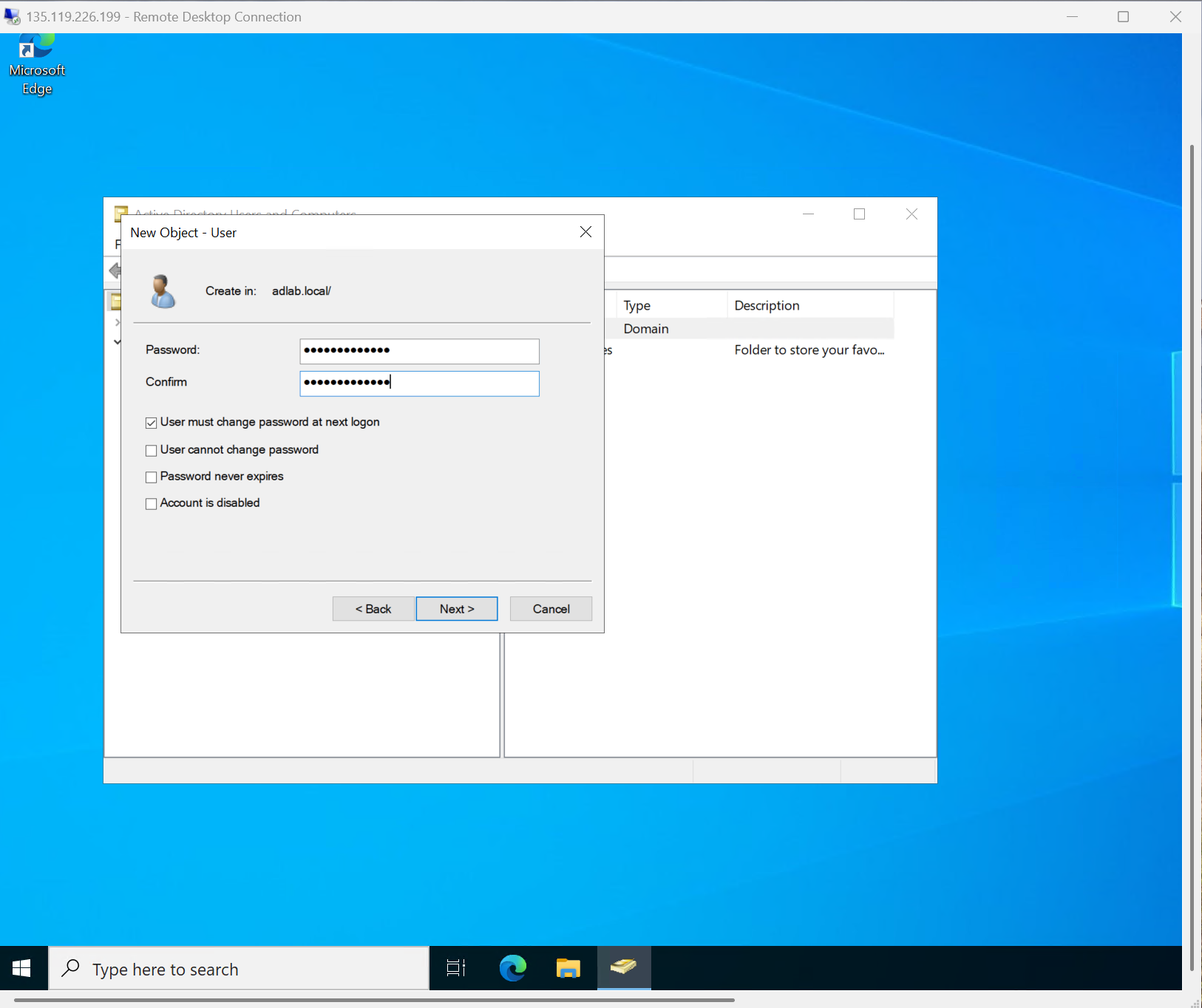
4.1 — Creating a test user with enforced password change

In Active Directory Users and Computers, a Test User was created and required a password change at next logon. This mirrors standard onboarding practices where default credentials are temporary and must be replaced by the user.

  • Created a lab user object with unique logon name and display name
  • Configured password and enabled "User must change password at next logon"
  • Captured the typical create → configure → enable flow used in onboarding
ADUC New User Password Configuration

ADUC user creation dialog showing password configuration and first-logon reset.

4.2 — Building security groups and organizing domain objects

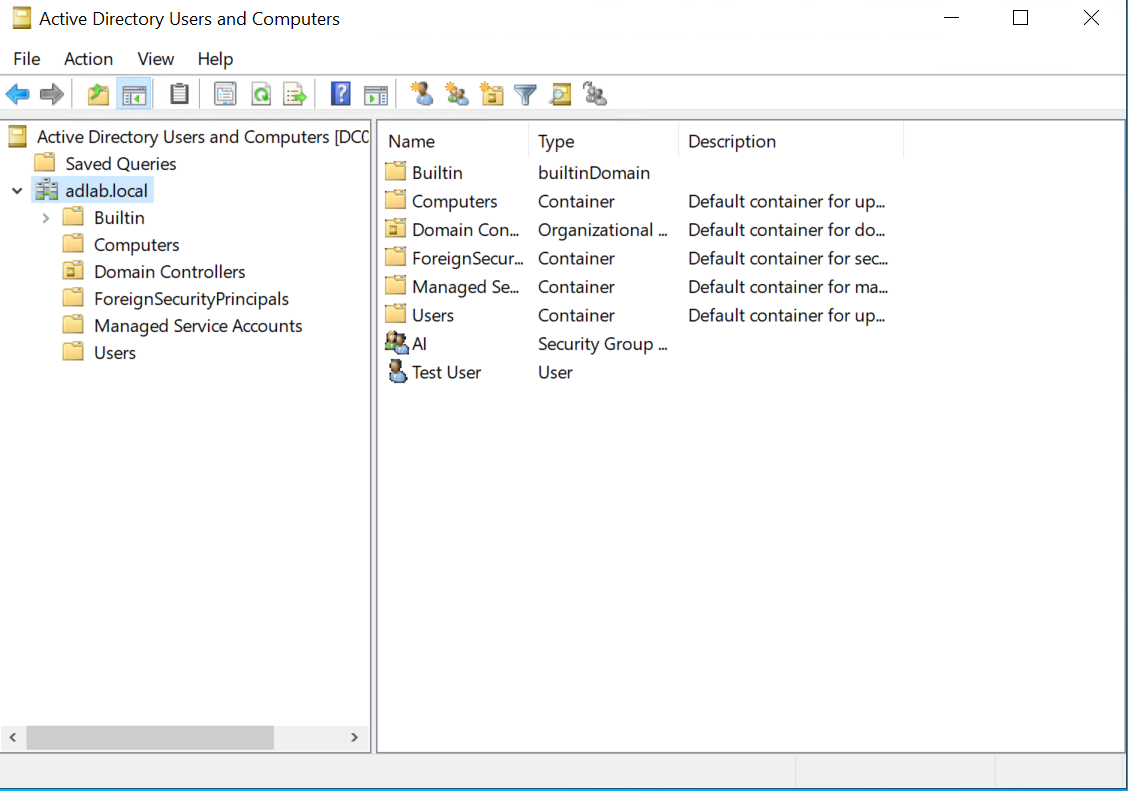
To keep access manageable, a security group named All was created and treated as a team or role representation. Together with the test user, this formed the basis for group-based access controls and troubleshooting scenarios.

  • Created a security group representing a logical team in the organization
  • Added the test user to the group to drive later access testing
  • Prepared objects for clean OU design and shared folder mapping
ADUC Domain Objects User Group Created

ADUC view showing the Test User and All security group used for access testing.

Phase 5 — OUs, shared folder access, and PowerShell administration

The final phase combines directory design with practical access control. A Custom Groups OU was created, groups were organized inside it, and a shared folder was configured whose permissions are driven by group membership. The same workflow was then mirrored in PowerShell to demonstrate scriptable administration.

5.1 — Group-based access to a shared folder

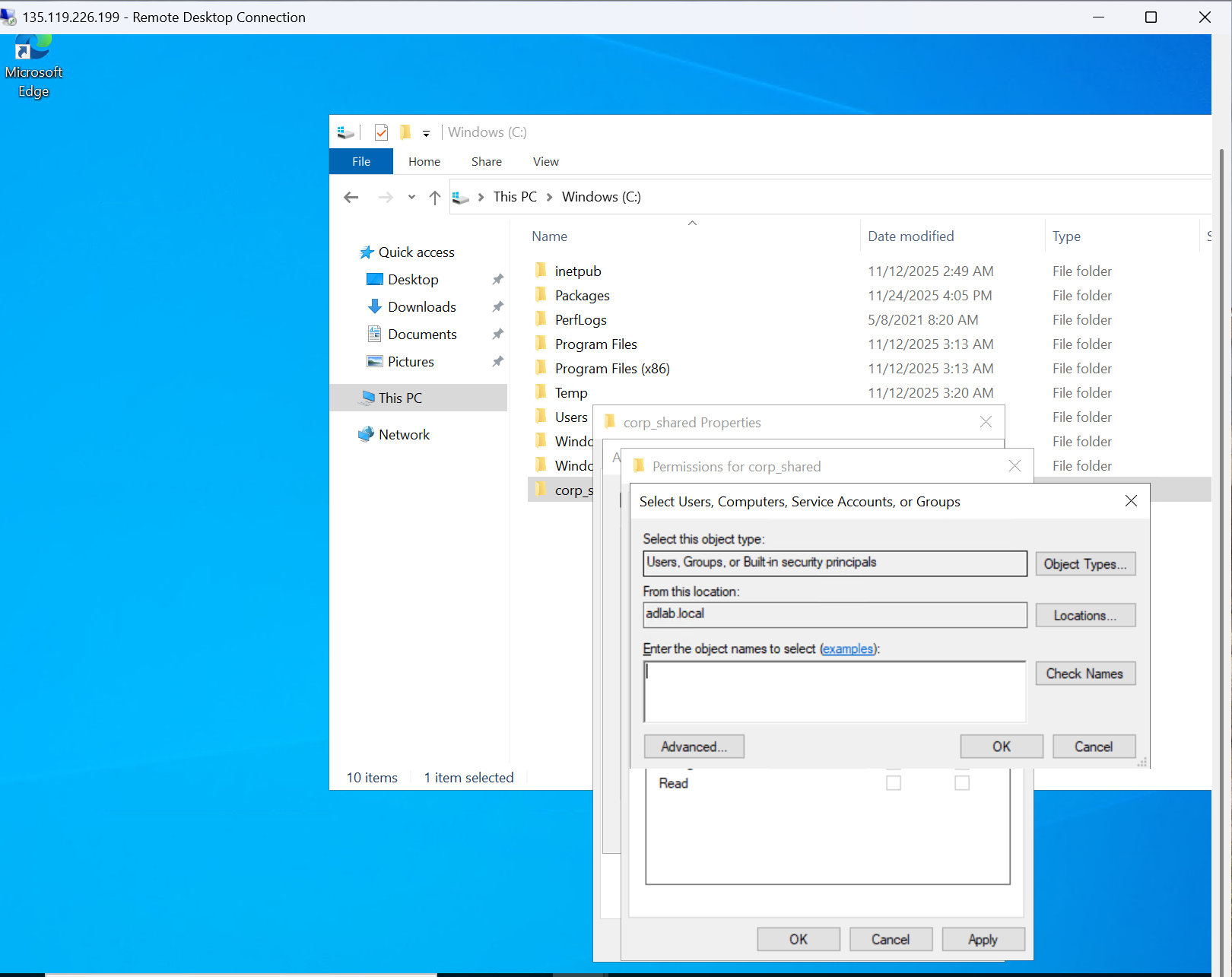
On DC01, a folder named corp_shared was created, shared, and assigned permissions to the All security group. Adding or removing users from the group immediately changed their access — a core pattern for scalable RBAC.

  • Created a Custom Groups OU and moved the All group into it
  • Configured NTFS and share permissions on corp_shared for the group
  • Verified that membership changes immediately affected access
FileShare Select AD Object Permissions

Shared folder permissions assigned via the All security group, demonstrating group-based access control.

Sample PowerShell — scripting user and group administration

While the lab uses the GUI for clarity, the same identity lifecycle can be automated using PowerShell once the domain is in place. These sample commands show how to create a user, add them to a group, and perform a password reset in adlab.local.

Create and enable a new user

New-ADUser -Name "Test User" `
           -GivenName "Test" `
           -Surname "User" `
           -SamAccountName "test.user" `
           -UserPrincipalName "test.user@adlab.local" `
           -AccountPassword (Read-Host -AsSecureString "Password") `
           -ChangePasswordAtLogon $true `
           -Enabled $true

Group membership and password reset

# Add user to group
Add-ADGroupMember -Identity "All" -Members "test.user"

# Reset password and require change at next sign in
Set-ADAccountPassword -Identity "test.user" `
                      -Reset `
                      -NewPassword (Read-Host -AsSecureString "NewPassword")
Set-ADUser -Identity "test.user" -ChangePasswordAtLogon $true

Directory & Access Overview

The finished lab produced a working Active Directory domain with a clean OU structure, security groups, and group-based access to a shared folder. The stats and charts below summarize how identities, groups, and access paths fit together in the adlab.local environment.

Active Directory domain and OU view

Visual overview of the adlab.local domain in ADUC, including domain tree, default containers, and lab objects on DC01.

1
Domain Controller
DC01 hosting AD DS and DNS
1
AD Domain
Single lab forest adlab.local
12
Identities
Mix of lab users, admin, and service accounts
4
OUs / Groups
Custom OU, All group, and built-in containers
1
Shared Resource
corp_shared folder protected by group access

Identity & Access Highlights

6 KEY TAKEAWAYS
CENTRALIZED IDENTITY

Active Directory consolidates authentication, authorization, and policy into one platform that Windows environments depend on.

GROUP-BASED ACCESS

Using security groups instead of per-user permissions keeps access cleaner and easier to audit as environments scale.

OU DESIGN MATTERS

Even small labs benefit from structured OUs to separate users, groups, and administrative objects for future GPO and lifecycle management.

HELPDESK REALISM

Password resets, unlocks, and group membership changes mirror the tickets that entry-level IT and IAM roles handle daily.

SCRIPTING ADVANTAGE

PowerShell turns routine identity tasks into repeatable, auditable workflows, reducing manual error and speeding up response.

SAFE LAB ENVIRONMENT

Running AD in Azure isolates experimentation from production, making it safe to practice misconfigurations and fixes.

Hardening and Operations Strategy

Tier 1: Identity Hygiene

Objective: Ensure accounts, passwords, and groups follow basic security best practices.

  • Strong Credential Policy Enforce strong passwords and periodic rotation, especially for privileged accounts.
  • Least Privilege Groups Use security groups aligned to roles, not individuals, to avoid privilege creep.
  • Account Lifecycle Controls Disable or remove accounts promptly when users leave or roles change.

Tier 2: Access Governance

Objective: Keep permissions understandable, auditable, and easy to troubleshoot.

  • Group-based Folder Access Map shared resources like corp_shared to groups, not individual users.
  • Standardized Naming Use clear, consistent naming conventions for users, groups, and OUs to aid audits.
  • Regular Reviews Periodically review group membership and folder ACLs to align with real usage.

Tier 3: Operational Resilience

Objective: Build repeatable procedures for monitoring, backup, and recovery.

  • Backups & Snapshots Protect the domain controller with snapshots or backups before major changes.
  • Monitoring & Logs Track logon failures, account lockouts, and admin activity for early warning signs.
  • Scripted Operations Use PowerShell to standardize user onboarding, offboarding, and group changes.

Key insights

  • Active Directory is the central nervous system for identity and access in Windows environments.
  • Most day-to-day work involves user onboarding, password resets, unlocks, and group membership fixes.
  • Clean OU and group design early on makes future group policy, auditing, and troubleshooting far easier.
  • Group-based permissions on shared resources keep environments scalable and reduce configuration drift.
  • Running AD in Azure provides a safe, isolated environment to practice real identity workflows without production risk.

Skills demonstrated

Azure Virtual Machines Windows Server Administration Active Directory Domain Services DNS Configuration User Lifecycle Management Group and OU Design Identity and Access Management Helpdesk Workflow Simulation PowerShell for AD Administration

Summary

This lab walks through how identity is created, managed, and secured inside a Windows domain. Using a Windows Server 2022 VM in Azure, the server was promoted to a domain controller, a domain admin was created, a test user was onboarded, objects were organized into OUs, and group-based permissions were applied to a shared folder. Together, these steps demonstrate how authentication, authorization, and directory structure work in practice — mirroring the daily responsibilities of entry-level IT, helpdesk, and identity analysts, including password resets, account management, and access control through AD group membership and PowerShell automation.