Dataset overview and workbook structure
The project begins with a multi tab Excel workbook that separates major KPI areas into
their own sheets. This layout mirrors how operations teams keep delivery, cost, and
retention data organized for recurring analysis.
1.1 — Organizing KPIs into a dedicated workbook
All operational data from 2014 through 2018 lives inside a single workbook. Each
KPI category uses its own tab so metrics, charts, and tests never overlap or get
mixed together by mistake.
- Segmented KPIs into On Time Delivery, Transmission Cost, and Retention tabs
- Labeled ranges clearly so formulas and charts point to consistent data
- Kept 2014–2018 values aligned across tabs for easier trend comparisons
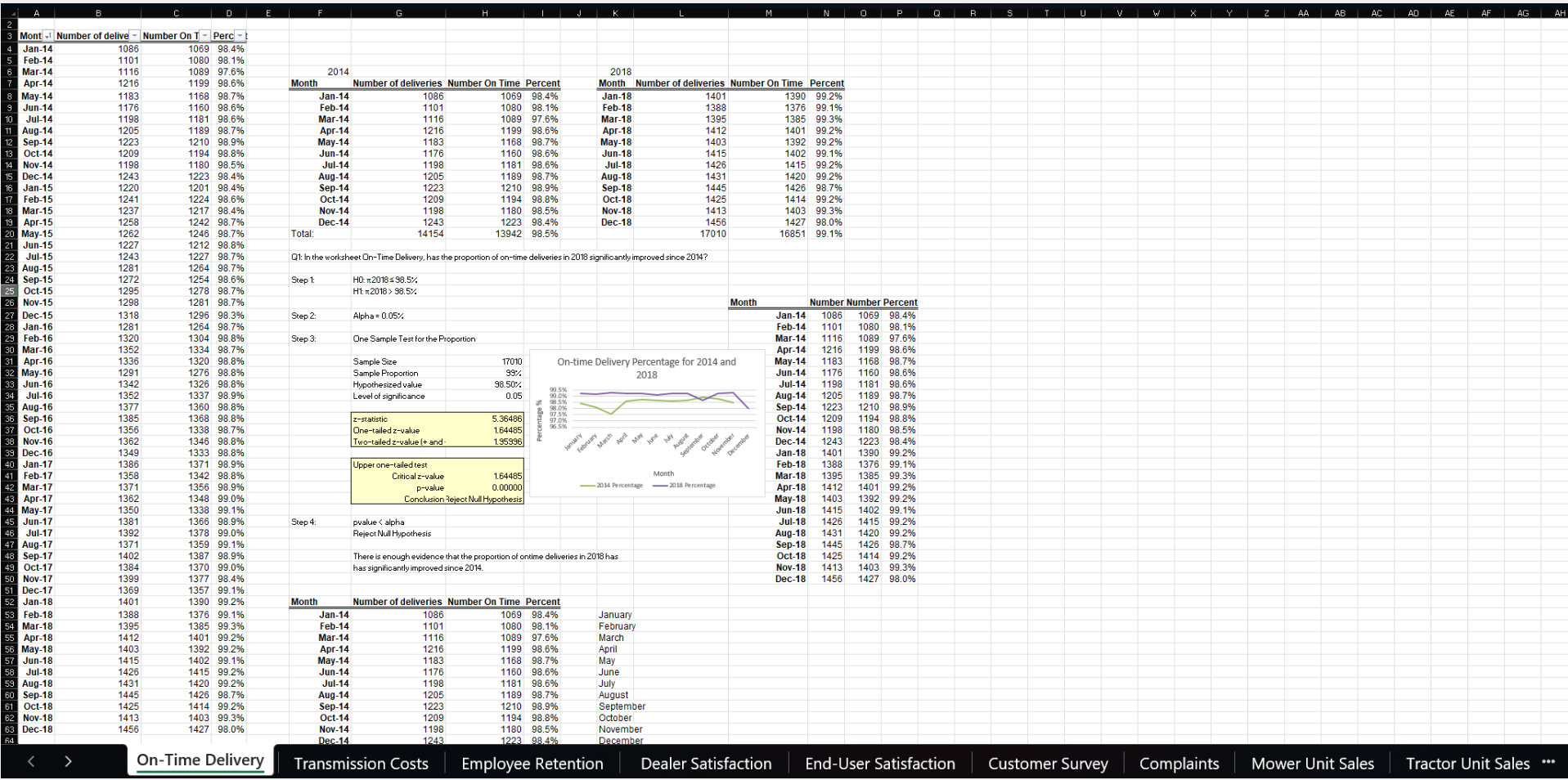
Excel workbook main screen with separate tabs for delivery, transmission cost, and retention.
Key actions in this phase
- Grouped KPIs into distinct tabs to mirror a real operations workbook
- Ensured that all 2014–2018 data aligned by period for cross tab comparisons
- Prepared a structured starting point for delivery, cost, and retention analysis
On time delivery analysis and hypothesis test
This portion of the lab focuses on whether on time delivery performance genuinely
improved between 2014 and 2018. The analysis combines trend visualization with a
one sample proportion test at the 95 percent confidence level.
2.1 — Visual comparison of delivery trends
A line chart compares monthly on time delivery rates for 2014 and 2018. This
makes it easy to see seasonal dips, recovery periods, and the overall shift
in consistency as operations improved.
- Plotted 2014 and 2018 delivery percent side by side by month
- Identified months where 2018 significantly outperformed the earlier year
- Used the chart as a visual anchor before running formal tests
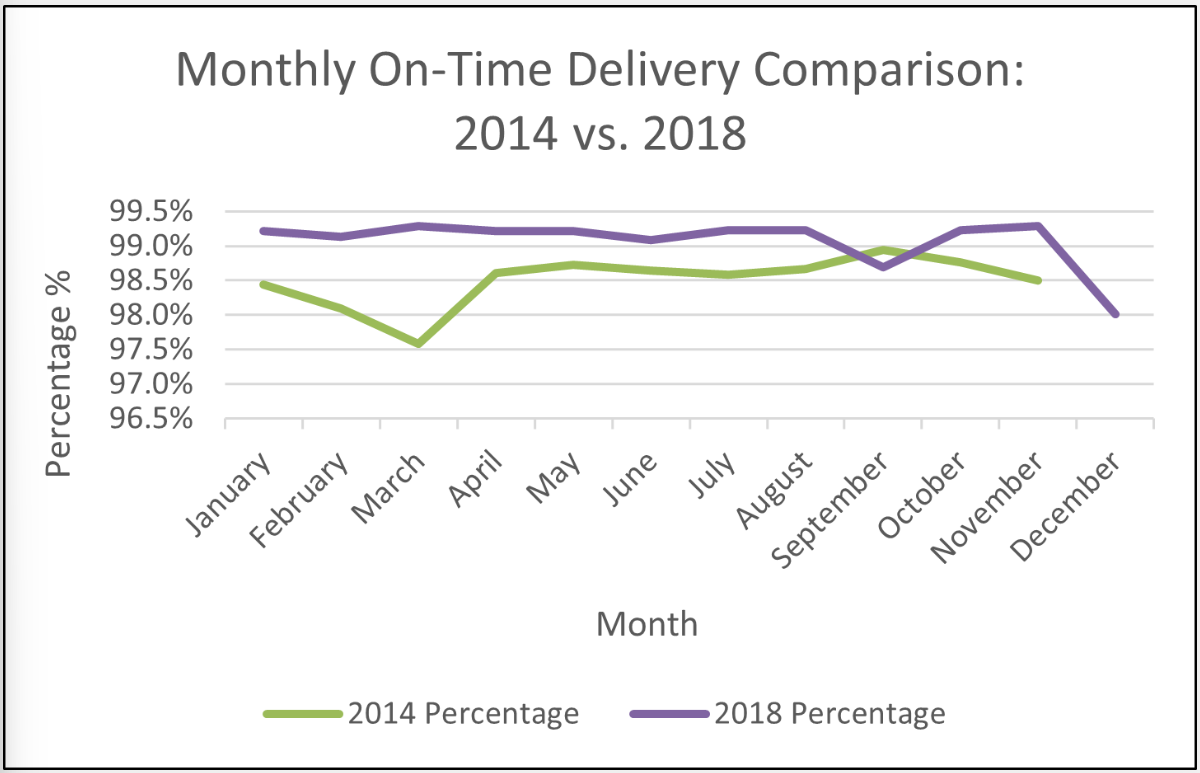
Monthly delivery comparison for 2014 and 2018, showing seasonal patterns and overall improvement.
2.2 — Proportion test at 95 percent confidence
A one sample proportion test verifies that the higher 2018 delivery rate is
not just noise. The test uses a 5 percent significance level, aligning with
standard business analytics practice.
- Calculated the observed delivery proportion for 2018
- Computed the test statistic and p value using standard Excel functions
- Rejected the null hypothesis, confirming a significant improvement
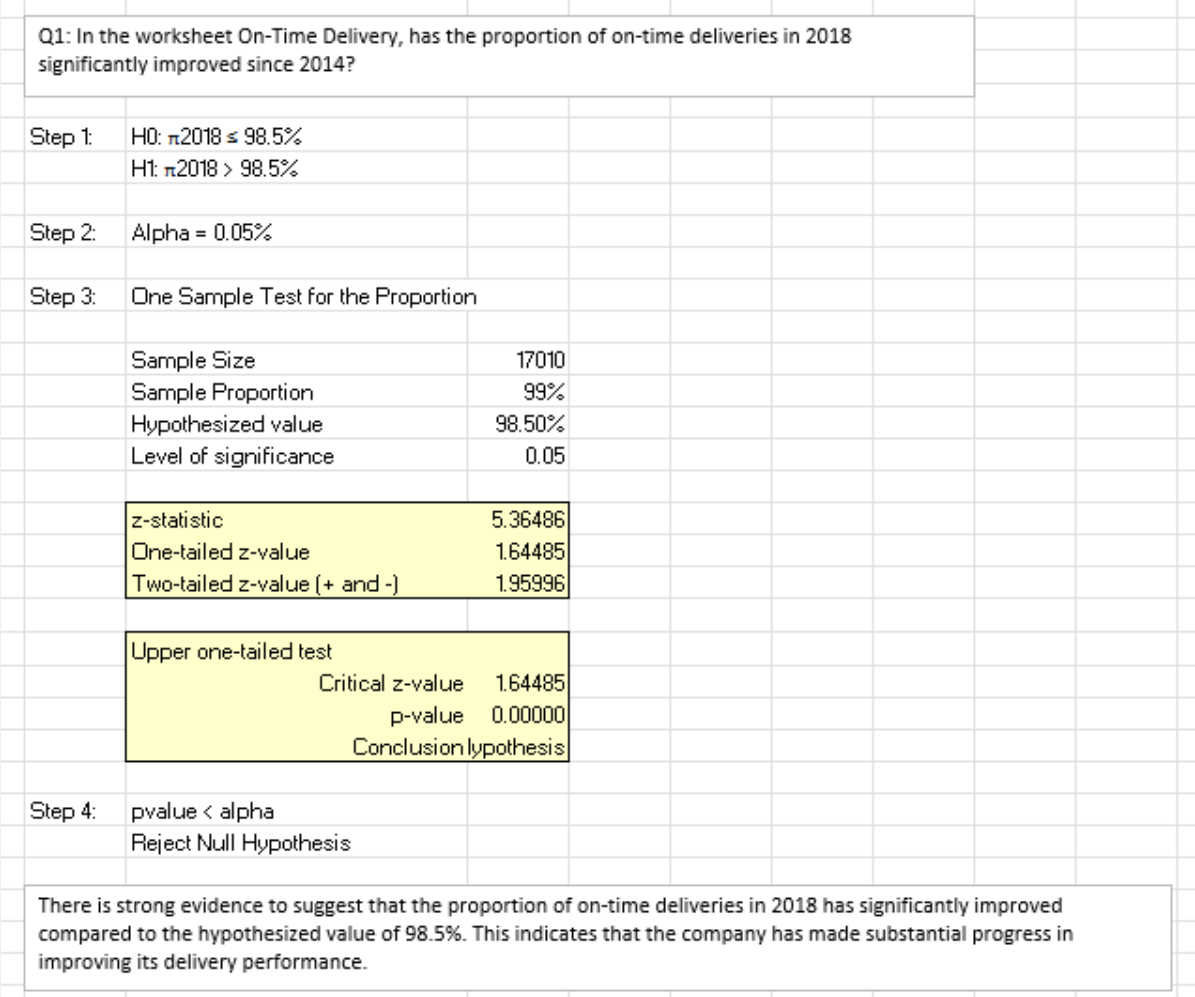
Proportion test results confirming that 2018 on time delivery improved significantly at α = 0.05.
Key actions in this phase
- Built a clear visual comparison of 2014 versus 2018 delivery performance
- Applied a one sample proportion test at the 95 percent confidence level
- Confirmed that the observed improvement in on time delivery is statistically meaningful
Transmission cost comparison and ANOVA
This phase evaluates whether unit transmission costs differ across the current
manufacturing process, Process A, and Process B. The analysis uses both visual
comparison and a one way ANOVA to identify the most cost efficient option.
3.1 — Visual comparison of unit costs
A bar style chart displays unit transmission costs for each of the three
processes. The visual immediately highlights that Process A tends to sit
at the lower end of the cost range.
- Plotted unit cost observations for the current process, Process A, and Process B
- Used the chart to spot differences in both average level and variability
- Identified Process A as a visually strong candidate for lowest cost
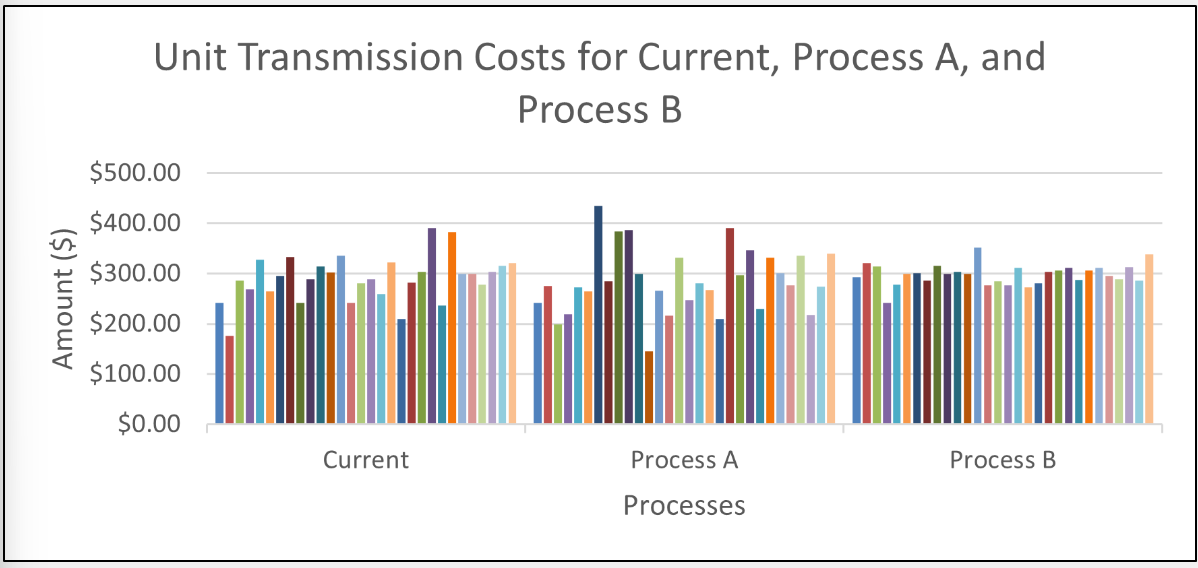
Unit transmission cost comparison across the current process, Process A, and Process B.
3.2 — One way ANOVA with Excel ToolPak
A one way ANOVA quantifies whether at least one process differs in mean cost.
The test uses the Data Analysis ToolPak and reports summary statistics, the
F statistic, the critical F value, and the p value.
- Structured the data into ToolPak friendly ranges for each process
- Ran a one way ANOVA to compare mean transmission costs
- Interpreted the p value to confirm statistically significant differences
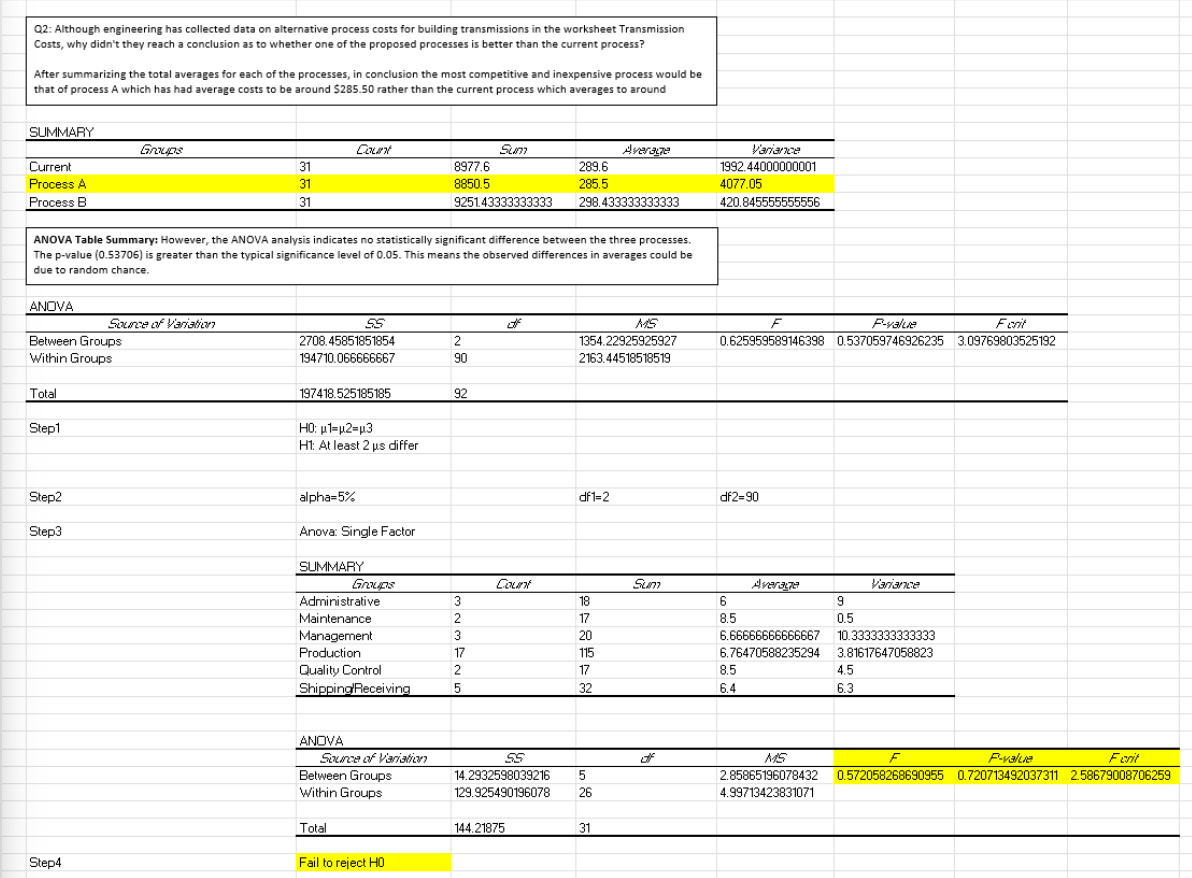
ANOVA output confirming statistically significant cost differences across processes.
Key actions in this phase
- Compared unit transmission costs visually across three manufacturing processes
- Used a one way ANOVA to formally test for mean cost differences
- Identified Process A as the most cost efficient option based on both charts and statistics
Employee retention by gender and locality
The retention analysis explores how stable the workforce is across demographic
segments. Excel pivot tables and charts reveal which groups stay longer and where
HR might want to focus targeted strategies.
4.1 — Visual retention breakdown
A bar chart summarizes retention counts by combinations of gender and locality.
This view quickly highlights which segments show stronger or weaker retention.
- Built a pivot table to count retained employees by demographic segment
- Visualized the counts to highlight stronger and weaker retention groups
- Used the chart as an entry point for HR oriented discussion
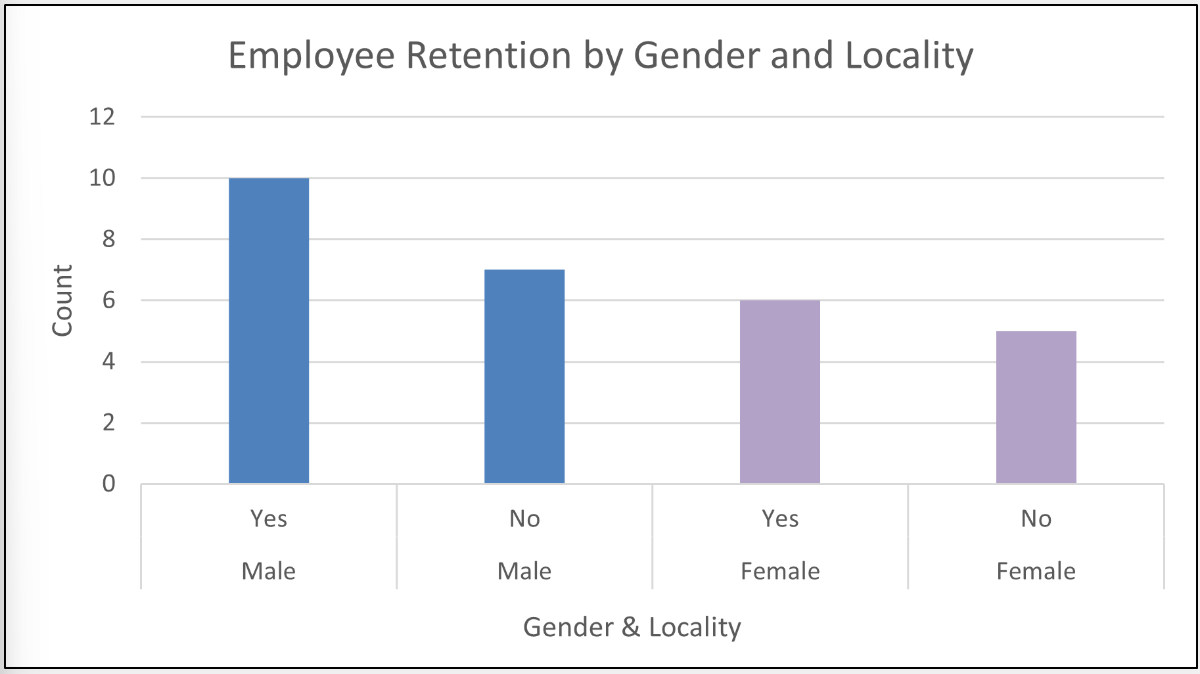
Retention breakdown by gender and locality, highlighting key demographic patterns.
4.2 — Underlying counts and stability
The underlying table confirms exact counts for each group and ensures the
chart accurately reflects the data. Differences are visible but not extreme,
suggesting generally stable retention across segments.
- Reviewed raw counts for each gender and locality combination
- Verified that chart values match the summarized table
- Noted that most differences are modest rather than extreme outliers
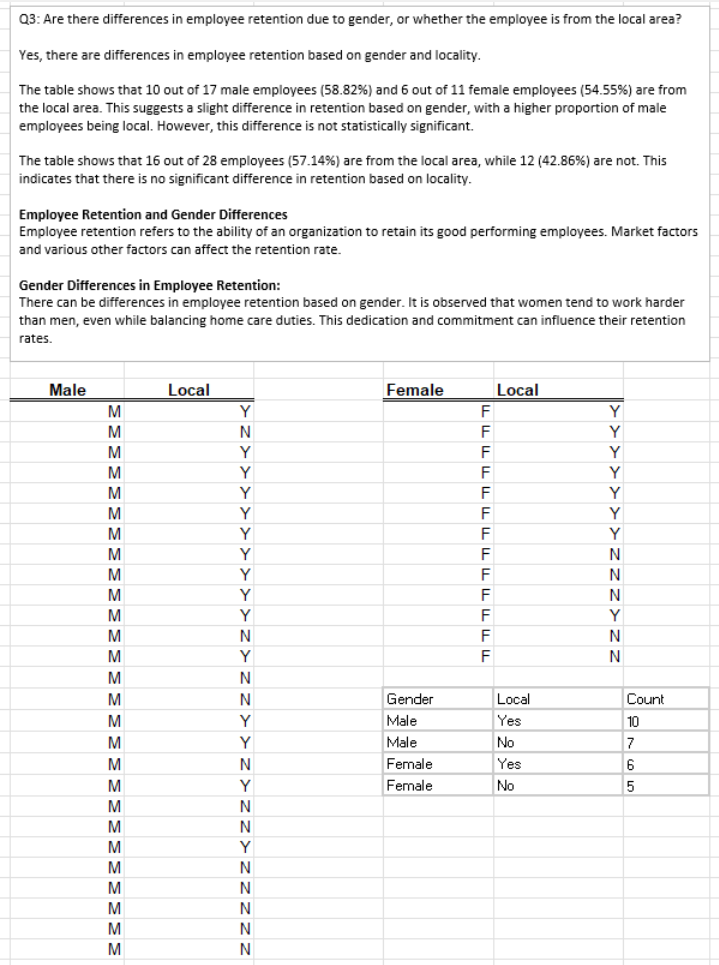
Retention counts summary table used to compare and validate demographic segments.
Key actions in this phase
- Used pivot tables to segment retention data by gender and locality
- Visualized retention counts to highlight where turnover might be higher
- Confirmed that differences across demographic groups are present but generally modest